What a ligature is
When you type t then h, the font looks for a ligature drawn for th, and if there is one, shows it instead of the two letters. The text itself doesn’t change: it is still t and h, it still searches and spell-checks as th. Only the drawing is joined.
Joined letters
The pairs worth drawing are the ones you join without thinking. In English that is often th, tt, ll, ff, fi, oo; in Hebrew, אל, לא and של. Fonterie suggests these, among those your font has letters for.
Symbols
The same mechanism can swap what you type for something else entirely. Type <3 and get a heart you drew; :) gives a smiling face, -> an arrow. The sheet asks you to draw the heart, not the characters <3.
Add ligatures
- Open the Alternates tab and scroll to Ligatures.
- Under Suggested, click a pair to add it; click it again to take it out. Under Symbols, the same for the symbols.
- For a combination of your own, type it in the box (for example th or אל) and choose Add.
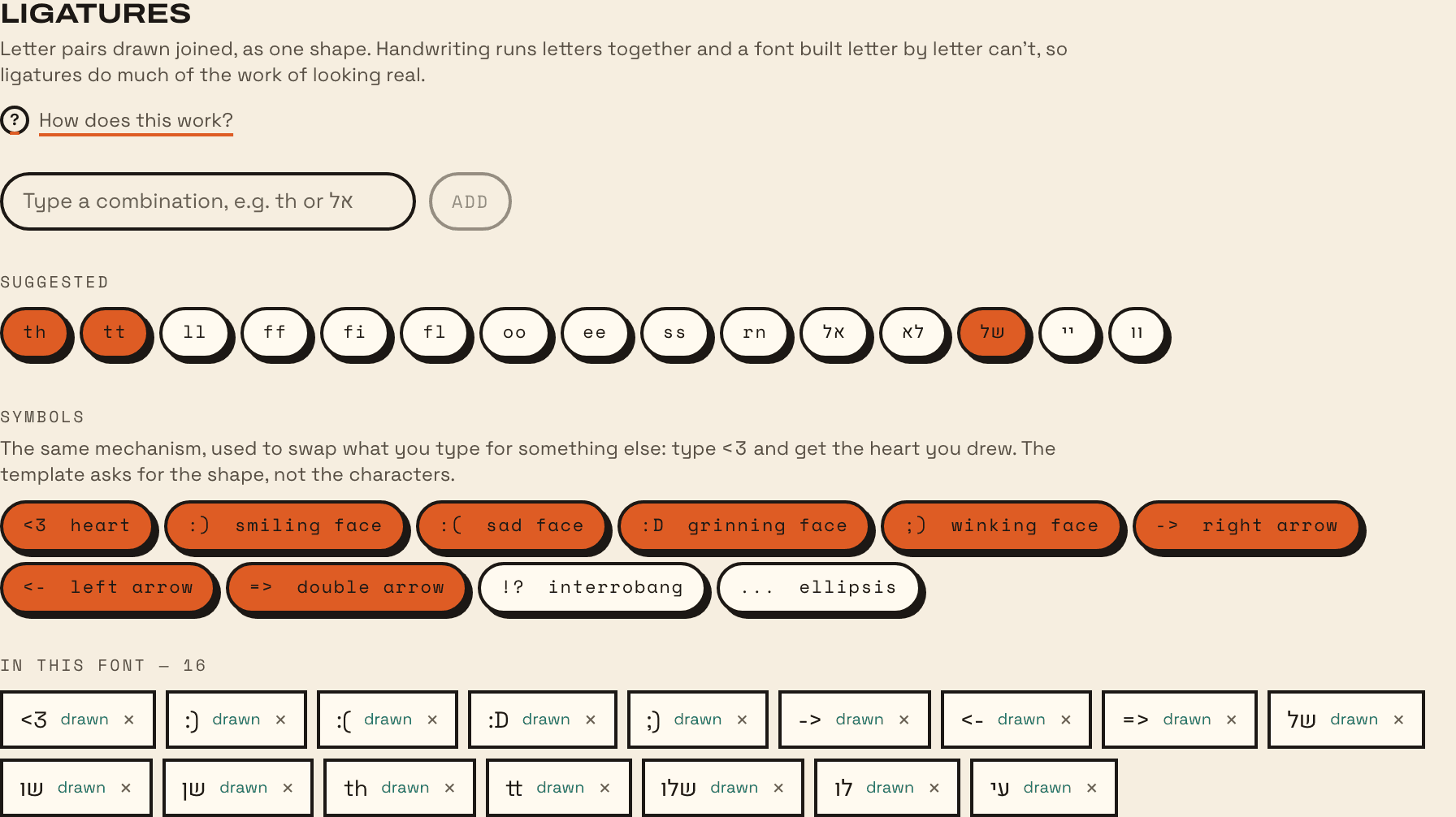
Every ligature in the font is listed under it, marked as drawn or still to draw, with Remove to take one out.
Draw them
A ligature you add is a new character in the font, empty until drawn. Draw it like any other:
- On a sheet: print one with Only what is still missing ticked, and it asks for just the ligatures and anything else not yet drawn. See the sheet guide.
- With the brush: open it in the Characters tab and draw it on screen.
Write the pair joined the way you really do, in one box. A ligature looks right when the join is the one your hand makes.
Where they show up
Ligatures are on by default in the OpenType standard, so most apps show them without being asked: Pages, Keynote, TextEdit, Notes and Mail on a Mac, iPhone and iPad; web browsers; Figma; Canva. Two exceptions:
- Microsoft Word leaves them off. Select the text, open Font, then the Advanced tab, and set Ligatures to “Standard and Contextual”.
- Some apps let you turn them off. If a ligature doesn’t appear, check the app’s typography or OpenType settings, and that the font installed is your latest export.